
Follow these simple steps to record, save, and share your videos using OneDrive, Dropbox, or Google Drive. Whether you're new to cloud storage or just need a refresher, this guide will walk you through every step of the process with clear instructions and helpful tips.
 Step 1
Recording Your Video
Getting Started
Open the Camera app on your phone. You'll find it on your home screen or in your app drawer. Most phones have this app pre-installed, making it easy to get started right away.
Choose Video Mode
Look for the video option, usually marked with a camera icon or the word "Video." Swipe left or right, or tap the mode selector to switch from photo to video mode.
Start Recording
Press the red Record button to begin filming. When you're finished, tap the Stop button. Your video will automatically save to your phone's gallery or camera roll.
Pro Tips for Better Videos
- Hold your phone steady or use a tripod
- Record in a well-lit area or near natural light
- Keep your lens clean for clear footage
- Record in landscape mode for wider viewing
Uploading to Microsoft OneDrive
Open OneDrive App
Launch the OneDrive app on your phone. If you don't have it installed, download it free from the App Store or Google Play Store. Sign in with your Microsoft account.
Tap the Add Button
Look for the "+" icon, typically located at the top or bottom of the screen. Tap it to reveal upload options.
Select Upload
Choose Upload from the menu that appears. You'll be prompted to select what type of content you want to upload.
Choose Your Video
Navigate to your phone's gallery, select the video you just recorded, and confirm. Watch the progress bar as your video uploads.
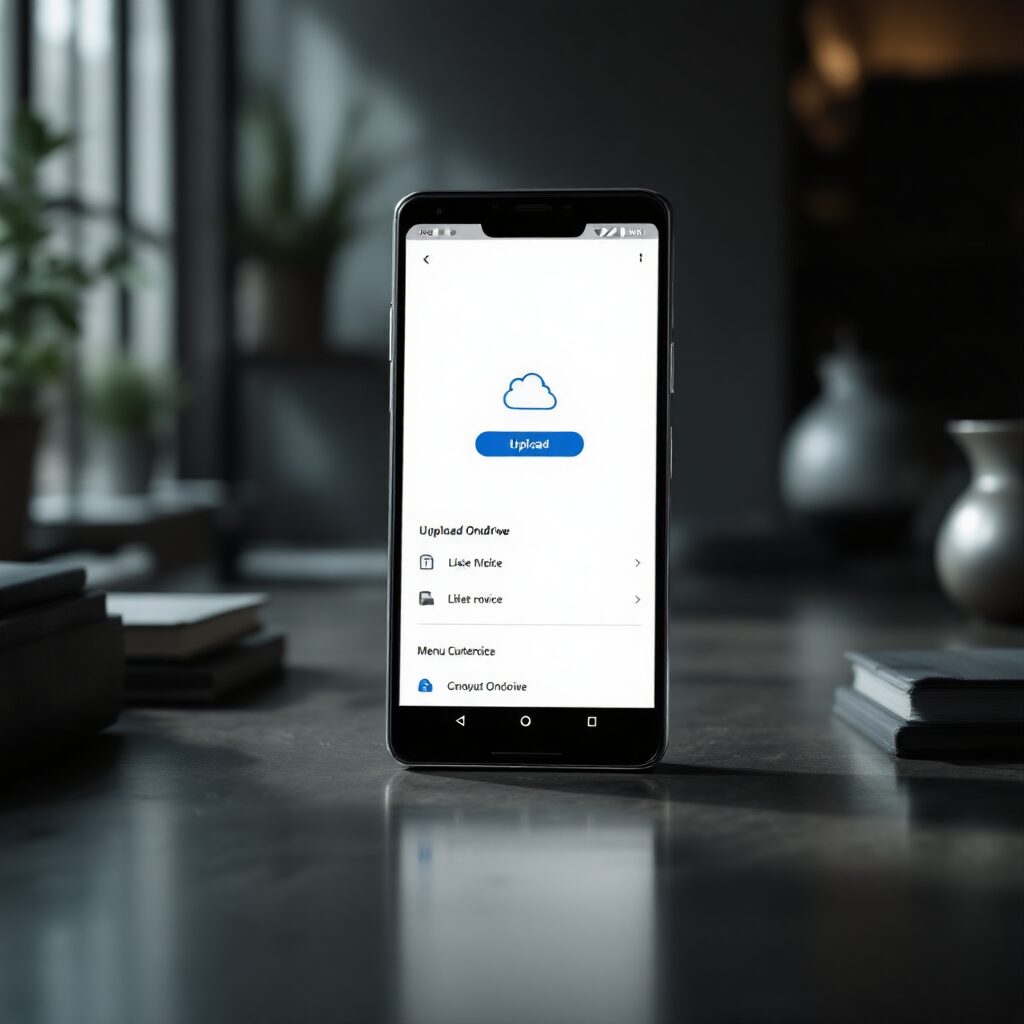
OneDrive Organisation Tip
Create a dedicated folder called "My Videos" or "Community Videos" to keep your uploads organised. Tap the folder icon, then "New Folder" to create one before uploading.
Uploading to Dropbox
Important Reminder
Keep the Dropbox app open until you see the confirmation message that your upload is complete. Closing the app too early may interrupt the upload process.
Open Dropbox App
Launch the Dropbox app. Download it from the App Store or Google Play if needed, then sign in with your Dropbox credentials.
Tap the Plus Icon
Find the "+" button, usually at the bottom centre of the screen. Tap it to access upload options.
Select Upload Files
From the menu that appears, choose Upload Files. This will open your phone's file browser.
Choose and Upload
Navigate to your videos, select the one you want to upload, and tap confirm. Monitor the upload progress indicator.
Uploading to Google Drive
Launch Google Drive
Open the Google Drive app on your phone. If you don't have it, download it free from your app store. Sign in using your Gmail or Google account credentials.
Access Upload Menu
Tap the "+" button, typically located in the lower right corner of the screen. This opens the create and upload menu.
Choose Upload Option
Select Upload from the menu options, then choose Videos or Browse to access your phone's video gallery.
Select Your Video
Find and tap the video you recorded. You can select multiple videos at once if needed. Confirm your selection to begin the upload process.
Bonus Feature: Google Drive makes sharing incredibly easy. After uploading, tap the three dots next to your video, select "Share," and choose "Copy link" to quickly share your video with anyone.
Troubleshooting Common Upload Issues
Upload Taking Too Long?
Solution: Large video files can take time, especially on slower connections. Connect to Wi-Fi instead of cellular data for faster, more reliable uploads. Check your internet speed and consider uploading during off-peak hours.
Not Enough Storage Space?
Solution: Cloud services offer limited free storage. Delete old files you no longer need, or consider upgrading to a paid plan for more space. OneDrive, Dropbox, and Google Drive all offer affordable monthly plans.
Upload Failed or Interrupted?
Solution: Ensure your app is updated to the latest version. Keep the app open during upload, and don't let your phone lock or sleep. If it fails, try again or restart your phone.
Can't Find Your Video After Upload?
Solution: Check the "Recent" or "My Files" section in your cloud app. Videos might also be in the default upload folder. Use the search function with your video's name or date.